Env Hub
入门指南
写给 eigent.ai 以外的合作方,开始用 Env Hub 之前看这里:登录,或者用 Upload link 交题。有了账号、登录之后,可以看完整的使用指南。
External members
外部成员指南
你不在 eigent.ai,被某个项目的 owner 加成了成员,平台给你发了邀请邮件。这一页讲怎么登录、能做什么。
登录
- 打开 hub.env-lab.ai,点 Not at eigent.ai? Sign in with an email code不用注册:项目 owner 加了你的邮箱就行。
- 输入 owner 添加的邮箱,点 Send code一分钟内会收到 Env Hub 发来的 6 位验证码;没收到先看垃圾邮件。
- 填验证码,点 Sign in验证码 10 分钟内有效,只能用一次。登录保持 7 天。
你能做什么
- 能看到的项目:只有邀请你的项目。
- member:可以上传题目和运行结果(Tasks → Upload)、评审、评论、发起 rollout。
- viewer:只能看。
- 不能做的事:建项目、创建 CLI token、当管理员。命令行
eh不对外部成员开放,请用网页上传。
遇到问题
| 情况 | 怎么办 |
|---|---|
| 收不到验证码 | 看看垃圾邮件,并确认邮箱就是 owner 添加的那个。一分钟后可以重发,每小时最多 5 次。 |
| 提示 wrong or expired code | 验证码 10 分钟有效,输错 5 次作废,重新发一个。 |
| 提示 no project has added you | 你已经不在任何项目里,联系项目 owner。 |
| 提示 Too many sign-in attempts | 等一分钟再试。 |
Upload link
外部交题人指南
你拿到的是一条 Upload link(形如 https://hub.env-lab.ai/u/hl_…)。不用注册、不用登录,打开就能交题。
- 按准备题目整理好题目目录放进一个文件夹,有运行结果也一起放。
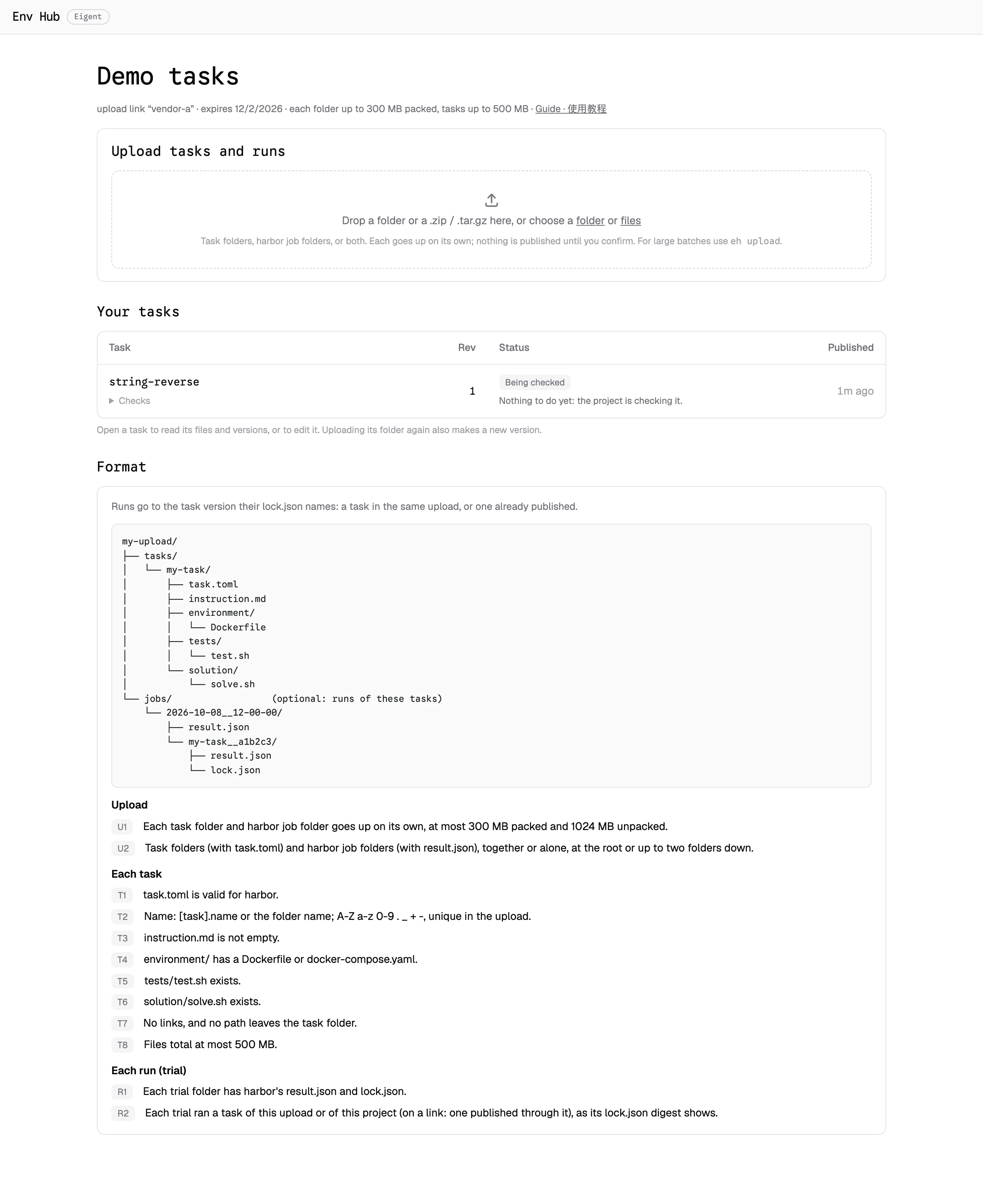
- 打开链接,把文件夹(或它的 .zip / .tar.gz)拖进 Upload tasks and runs每个题目目录和 job 目录单独上传;断线会自动重试,或者给出 Resume 按钮。
- 看预览,再点 Publish点之前什么都没发布。不通过的会列出规则编号和原因,改完重新上传;内容变了会生成新版本。
- 跟进审核Your tasks 每道题一行,显示当前版本、走到了哪一步(Being checked、Needs a fix 及原因、Measuring difficulty、Waiting for review、Accepted 或 Rejected)和下一步做什么;点开 Checks 看审核、评审和各项检查结果。
- 查看和修改点开一道题可以看它每个版本的文件和改动;Edit files 在网页上直接改,先看对比再发布成新版本。当前版本还没人评审时,可以点 Remove upload 撤掉这次上传:上一个版本重新成为当前版本;如果这是这道题唯一的版本,整道题会被删除。项目里的人都能再恢复。
Task format
准备题目
题目是官方 harbor 的 task 目录。一次上传可以放一道题,也可以放很多道,还可以连同它们的运行结果(harbor job 目录)一起放。
目录结构
my-task/
├── task.toml          # harbor 配置:超时、资源、metadata……
├── instruction.md     # 给 agent 的题面
├── environment/
│   └── Dockerfile     # 或 docker-compose.yaml
├── tests/
│   └── test.sh        # verifier
└── solution/
    └── solve.sh       # 参考解(oracle)
题目和运行结果一起上传
my-upload/
├── tasks/
│   └── my-task/            # 题目目录
└── jobs/                   # 可选:这些题的运行结果
    └── 2026-10-08__12-00-00/
        ├── result.json
        └── my-task__a1b2c3/   # trial:result.json + lock.json
题目目录(有 task.toml)和 job 目录(有 result.json)放在上传的文件夹里、或者往下两层以内都能认出来,名字随意。只放题目、或者只放一个 job 目录也行。这样的文件夹打成 .zip 或 .tar.gz 也一样:压缩包里只有一个顶层文件夹时就当作这个文件夹,否则当作和压缩包同名的文件夹;__MACOSX、.DS_Store 和链接会被忽略。每个题目目录和 job 目录单独上传、单独检查,所以大批量和小批量一样好传。
格式规则
每道题和每个运行结果逐条检查,不通过会列出违反了哪条,其他题照常发布。
| 规则 | 要求 |
|---|---|
| U1 | 每个题目目录和 job 目录单独上传,打包后最大 300 MB、解开后最大 1024 MB(全局参数) |
| U2 | 题目目录(有 task.toml)和 harbor job 目录(有 result.json),可以一起放也可以只放一种,在上传的文件夹里或往下两层以内 |
| T1 | task.toml 能被 harbor 解析 |
| T2 | 题名取 [task].name 或目录名,只能用 A-Z a-z 0-9 . _ + -,同一次上传里不能重名 |
| T3 | instruction.md 不能为空 |
| T4 | environment/ 里有 Dockerfile 或 docker-compose.yaml |
| T5 | 有 tests/test.sh |
| T6 | 有 solution/solve.sh |
| T7 | 不能有链接,路径不能指到题目目录外面 |
| T8 | 解压后总大小不超过 500 MB(可按项目调) |
| R1 | 每个 trial 目录有 harbor 的 result.json 和 lock.json |
| R2 | trial 跑的题按 lock.json 里的 digest 认:同一次上传里的题,或者本项目已发布的题(通过 Upload link 上传时,只能是这条链接发布过的题) |
版本怎么来
同名的题内容一变,重新上传就是新版本(rev 1、rev 2……);内容没变不会多出版本。版本用 harbor 的内容指纹(digest)区分,发布后只读。
FAQ
常见问题
| 问题 | 回答 |
|---|---|
| 收不到登录验证码? | 看看垃圾邮件,并确认邮箱就是项目 owner 添加的那个。一分钟后可以重发,每小时最多 5 次。 |
| 登录提示 wrong or expired code? | 验证码 10 分钟有效,输错 5 次作废,重新发一个。 |
| 登录提示 no project has added you? | 你已经不在任何项目里了,联系项目 owner。 |
| 登录提示 Too many sign-in attempts? | 等一分钟再试。 |
| Upload link 打不开? | 链接可能过期或被撤销了,联系给你链接的人。 |
| 重新上传了一样的题,为什么没有新版本? | 内容没变就显示 No change,不会多出版本。 |
| 上传运行结果提示 R2? | trial 跑的那一版既不在这次上传里,也不是经这条链接发布的。把题放进同一次上传;如果提示 task changed after this run,说明题在跑完之后改过。 |
| 能用命令行 eh 吗? | 不能,eh 只给 eigent.ai 同事用,请用网页上传。 |
Env Hub
Onboarding guide
For partners outside eigent.ai, before you start: signing in, or submitting tasks with an Upload link. Once you have an account and sign in, you can read the user guide.
External members
Guide for external members
You are not at eigent.ai and a project owner added you as a member; the hub emailed you an invite. This page covers signing in and what you can do.
Sign in
- Open hub.env-lab.ai and click Not at eigent.ai? Sign in with an email codeNo account to set up: the project owner adding your email is enough.
- Enter the email the owner added and click Send codeA 6-digit code arrives from Env Hub within a minute; check spam if it doesn't.
- Enter the code and click Sign inIt is valid for 10 minutes and works once. You stay signed in for 7 days.
What you can do
- Projects you see: only those that invited you.
- member: upload tasks and runs (Tasks → Upload), review, comment, start rollouts.
- viewer: read only.
- Not available: creating projects, CLI tokens, being an admin. The
ehCLI is for staff; upload on the web instead.
Troubleshooting
| Message | What to do |
|---|---|
| No code arrives | Check spam and that the email is the one the owner added. You can ask for a new code after a minute, up to 5 an hour. |
| wrong or expired code | Codes last 10 minutes and five wrong tries end one; ask for a new code. |
| no project has added you | You are no longer in any project; contact the project owner. |
| Too many sign-in attempts | Wait a minute, then try again. |
Upload link
Guide for external contributors
You received an Upload link (like https://hub.env-lab.ai/u/hl_…). No account or sign-in: open it and submit.
- Prepare your task folders as in Preparing tasksPut them in one folder, with their runs if you have them.
- Open the link and drop the folder, or a .zip / .tar.gz of it, on Upload tasks and runsEach task and job folder goes up on its own; if the connection drops, the upload retries by itself, or offers Resume.
- Read the preview, then click PublishNothing is published before you click. Failures list the rule and the reason; fix and upload again. Changed content becomes a new version.
- Follow upYour tasks lists one row per task with its current version, where it stands (Being checked, Needs a fix and why, Measuring difficulty, Waiting for review, Accepted or Rejected) and what to do next; Checks opens its audit, review and check results.
- Read and editOpen a task to see its files and changes in every version; Edit files changes them in the browser, shows the changes, then publishes them as a new version. Remove upload on the current version, while no one has reviewed it, takes it back: the version before it becomes current again, or, for the task's only version, the task is deleted. The project can restore either.
Task format
Preparing tasks
A task is an official harbor task folder. One upload can hold one task or many, together with their runs (harbor job folders) if you like.
Folder layout
my-task/
├── task.toml          # harbor config: timeouts, resources, metadata…
├── instruction.md     # the prompt the agent gets
├── environment/
│   └── Dockerfile     # or docker-compose.yaml
├── tests/
│   └── test.sh        # verifier
└── solution/
    └── solve.sh       # reference solution (oracle)
Tasks and runs in one upload
my-upload/
├── tasks/
│   └── my-task/            # a task folder
└── jobs/                   # optional: runs of these tasks
    └── 2026-10-08__12-00-00/
        ├── result.json
        └── my-task__a1b2c3/   # a trial: result.json + lock.json
Task folders (with task.toml) and job folders (with result.json) are found in the folder you upload or up to two folders down, whatever they are called. Tasks alone, or one job folder alone, work too. A .zip or .tar.gz of such a folder works the same: an archive with one top-level folder stands for that folder, otherwise for a folder named after the archive; __MACOSX, .DS_Store and links are left out. Each task folder and job folder goes up and is checked on its own, so a large batch is no harder than a small one.
Format rules
Every task and run is checked rule by rule. A failing task lists the rules it broke; the others are published as usual.
| Rule | Requirement |
|---|---|
| U1 | Each task folder and job folder goes up on its own, at most 300 MB packed and 1024 MB unpacked (global settings) |
| U2 | Task folders (with task.toml) and harbor job folders (with result.json), together or alone, in the uploaded folder or up to two folders down |
| T1 | task.toml is valid for harbor |
| T2 | The name is [task].name or the folder name, using only A-Z a-z 0-9 . _ + -, unique within the upload |
| T3 | instruction.md is not empty |
| T4 | environment/ has a Dockerfile or docker-compose.yaml |
| T5 | tests/test.sh exists |
| T6 | solution/solve.sh exists |
| T7 | No links, and no path leaves the task folder |
| T8 | Files total at most 500 MB unpacked (per-project setting) |
| R1 | Each trial folder has harbor's result.json and lock.json |
| R2 | Each trial ran a task matched by the digest in its lock.json: a task in the same upload, or one published in this project (through an Upload link: published through that link) |
Where versions come from
Upload a task with the same name and changed content and you get a new version (rev 1, rev 2, …); unchanged content adds no version. Versions are identified by harbor's content digest and are read-only once published.
FAQ
FAQ
| Question | Answer |
|---|---|
| No sign-in code arrives? | Check spam and that the email is the one the project owner added. You can ask for a new code after a minute, up to 5 an hour. |
| Sign-in says wrong or expired code? | Codes last 10 minutes and five wrong tries end one; ask for a new code. |
| Sign-in says no project has added you? | You are no longer in any project; contact the project owner. |
| Sign-in says too many sign-in attempts? | Wait a minute, then try again. |
| My Upload link doesn't open? | It may have expired or been revoked; ask whoever gave it to you. |
| I uploaded the same task again; why no new version? | Unchanged content shows No change and adds no version. |
| Uploading runs fails with R2? | The trials ran a version that is neither in the upload nor published through this link. Put the task in the same upload; if it says task changed after this run, the task was edited after the run. |
| Can I use the eh CLI? | No, eh is for eigent.ai staff; upload on the web instead. |